Unpacking the Spooky Creator Treasure Chest Bundle: A Practical Guide for Halloween Design
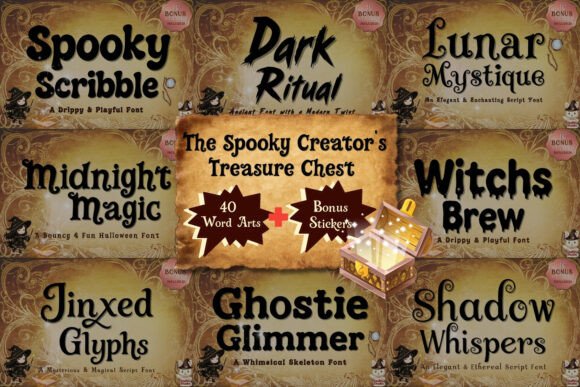
When the autumn chill sets in and the creative projects start piling up, many of us look for a toolkit that feels both magical and practical. The Spooky Creator Treasure Chest Bundle promises just that: a curated collection of 8 premium Halloween fonts, 40 ready-to-use word arts, and 8 exclusive mascot stickers, all designed to bring a professional yet playful, spooky vibe to your work. It’s marketed as a complete vault for creators, but before you dive in, it’s worth understanding what you’re really getting and how to use it effectively.
What Exactly Is This Bundle?
At its core, this bundle is a digital design asset pack. The 8 fonts—ranging from the bouncy fun of “Spooky Scribble” to the elegant gothic of “Shadow Whispers”—cover a wide spectrum of Halloween styles. The 40 word arts are high-resolution PNGs, perfect for quick projects like social media graphics or printable stickers. The Canva template link is a standout bonus, offering scalability for larger projects like T-shirts or banners. The 8 mascot stickers, featuring StillVii’s adorable crew, add a whimsical touch for planners or digital art.
But here’s where many people stumble: they see a large bundle and assume it’s a one-click solution for all their Halloween design needs. The reality is more nuanced. This bundle is a starting point, not an autopilot. Let’s explore some common missteps and how to avoid them.
Overlooking Font Licensing and Usage Rights
A frequent error is assuming all fonts in a bundle are free for any commercial use. While the Spooky Creator Treasure Chest Bundle includes premium fonts, the specific licensing terms—whether for personal projects, small business merchandise, or unlimited commercial use—need to be checked. Using a font beyond its license can lead to legal issues or unexpected costs down the line.
Better Approach: Before downloading, read the included license file or the seller’s terms. If you plan to use the fonts on products for sale, like mugs or T-shirts, confirm that the license permits it. When in doubt, reach out to the creator for clarification. This small step protects your business and ensures you’re using the assets ethically.
Ignoring the Canva Template’s Potential
The Canva template link is often underutilized. Many creators download the PNG word arts and use them as-is, missing out on the flexibility of editing colors, text, and scale. For instance, if you’re designing a large haunted house sign, a pre-made 3000px PNG might look pixelated when stretched. The Canva template allows you to resize without losing quality, customize colors to match your brand, and even modify text to fit your specific event.
Better Approach: Take 15 minutes to explore the Canva template. Duplicate it, experiment with changing the background color of a word art to match your party theme, or scale up a mascot sticker for a banner. This turns a static asset into a dynamic tool, saving you time and enhancing your project’s professionalism.
Using Fonts Without Considering Context
Not every font in the bundle will suit every project. “Witch’s Brew,” with its dripping slime style, is fantastic for a kids’ Halloween party invitation but might undermine the elegance of a gothic-themed wedding menu. Conversely, “Shadow Whispers” could be too formal for a playful social media post. Choosing a font based solely on how spooky it looks, without considering readability or audience, is a common pitfall.
Better Approach: Match the font to the project’s tone and medium. For digital screens, ensure the font is legible at smaller sizes—test it in a mockup. For printed materials, consider how the font’s details will render on different textures, like vinyl or matte paper. The bundle’s variety is its strength, so use it intentionally.
Neglecting to Organize and Tag Assets
With 8 fonts, 40 word arts, and 8 stickers, the bundle can quickly become a disorganized folder on your desktop. When you’re in a rush to create a last-minute social media graphic, wasting time searching for “the right witchy font” or a specific word art is frustrating and inefficient.
Better Approach: As soon as you download the bundle, spend a few minutes organizing. Create folders for “Fonts,” “Word Arts,” and “Stickers.” Within “Word Arts,” consider sub-folders by theme (e.g., “Phrases,” “Single Words,” “Borders”). Rename files descriptively—instead of “WA_01.png,” use “Trick_or_Treat_Banner.png.” This upfront effort streamlines your workflow and makes the bundle a true asset, not a digital junk drawer.
Overlooking the Mascot Stickers for Branding
The 8 mascot stickers are charming, but they’re often seen as just cute add-ons. For small business owners or bloggers, these characters can become a subtle branding element. Imagine using the “Witchy Cat” sticker consistently across your Halloween product labels or the “Dragon” on your digital planner pages. It creates a cohesive, recognizable theme that elevates your work.
Better Approach: Think beyond one-off use. Select one or two mascots that align with your brand’s personality and integrate them into your Halloween campaign. Use them on thank-you cards, as part of your email newsletter header, or as a recurring motif in your Instagram stories. This turns a generic asset into a signature element.
What to Check Before You Commit
Before purchasing or using the Spooky Creator Treasure Chest Bundle, ask yourself these questions:
- What is my primary use case? Are you a crafter needing Cricut-compatible fonts, a party planner designing invitations, or a digital artist working in Procreate? Ensure the bundle’s assets align with your software and goals.
- Do I have the right software? The fonts require installation on your computer or compatible apps. The Canva template needs a Canva account. Verify compatibility to avoid frustration.
- How will I manage the files? Plan your organization strategy ahead of time. Will you use cloud storage? How will you back up these assets?
- What is my budget for additional tools? While the bundle is a toolkit, you might still need a graphics editor (like Canva Pro or Adobe Illustrator) to fully customize designs.
The Spooky Creator Treasure Chest Bundle is a well-rounded collection for Halloween-themed projects, offering variety and quality. However, its true value is unlocked not by the purchase, but by thoughtful, informed use. By avoiding these common mistakes—checking licenses, leveraging the Canva template, choosing fonts contextually, organizing assets, and repurposing mascots—you transform a seasonal bundle into a lasting creative resource. This Halloween, let your designs be both spooky and smart.